![CoMetrics_Logo_CMYK-2.png]](https://help.cometrics.com/hs-fs/hubfs/CoMetrics_Logo_CMYK-2.png?height=40&name=CoMetrics_Logo_CMYK-2.png)
The NATE Annual Benchmarking Survey is a comprehensive, confidential program that collects key financial and operational data from participating members and returns a rich set of performance metrics - giving every participant a clear picture of where they stand and where opportunities exist.
Think of it as a financial health checkup for your business - one that shows you not just your own results, but how they compare with organizations like yours.
NATE's message to members about participating in the Annual Benchmarking Survey.
What do you get?
Submitting by the deadline means your data is included in the all analysis and reporting. You also have access to the CoMetrics Benchmarking dashboards, with downloadable charts and graphs, and market insights. It's a great value add to your membership and your business!
Check Your Email & Log In
Please check your email for the "Welcome to CoMetrics" email and follow the instructions to set up your account and access the survey. If you have not received this email, or are having trouble logging in, contact us at support@cometrics.com, and we'll help you get it sorted.
- Adding Users: If you’d like to add additional users from your organization reach out to CoMetrics directly at support@cometrics.com.
- Questions for the folks at NATE? contact Jill Rethke at jill@natehome.com.
Click here to download a helpful worksheet with all the survey questions. You can use this PDF to prep for the web survey, and enter it when you're ready.
How to Complete Your Survey:
- Download a handy PDF version of the survey questions to prep in advance.
-
Log in to your CoMetrics account.
-
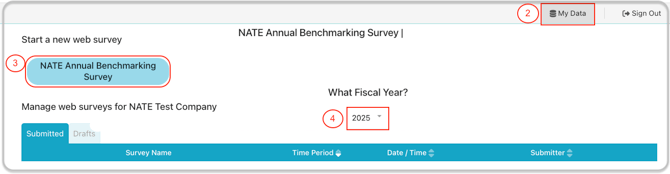
Click on the blue "NATE Annual Benchmarking Survey" button.
- Verify the Fiscal Year (2025) and click "Next".
- Don't lose what you've entered! If you need to come back to the survey later, just click "Save as Draft" on the page. When you log back in later, you can find your saved survey in the "Drafts" folder in the My Data section of your account - just select "Edit" in the dropdown menu.
Need to step away? Don't lose your progress!
Use "Save as Draft" at the bottom of the page to ensure nothing is lost. You can find your saved draft in the "Drafts" folder of your My Data page. Select "Edit" in the dropdown to continue entering your data.
When you reach the end, be sure to "Submit" your results.